
Screenshot Text Editor
Select text in a screenshot, remove it cleanly, and drop in new text matched to fit.
Written by SamundraLast updated
Drag and drop a file here
Supports .jpg, .png, and .webp
Text detection and every edit run on your device — nothing is uploaded. Works best on real UI screenshots (solid or simple backgrounds); busy photo backgrounds are harder to fill seamlessly.
Related tools

Introduction
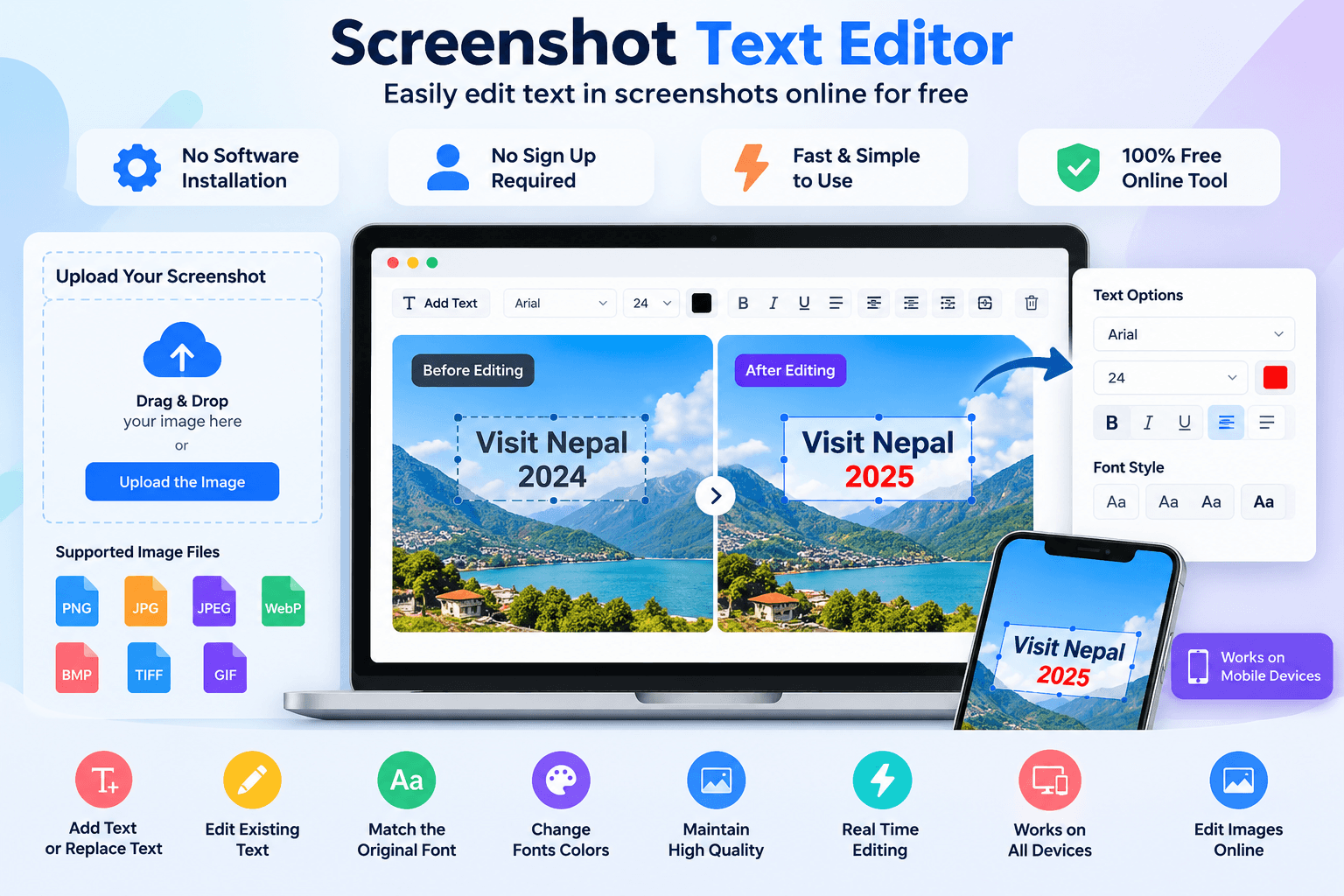
Screenshot Text Editor is a completely free online tool that allows users to easily edit text in screenshots. It provides a simple and fast process without requiring users to install any software or register or sign up for an account. Anyone can easily use this screenshot editor online to make necessary changes to a screenshot. Users may need to correct a spelling mistake, update information, replace existing text, or add new text to an image. With advanced text-detecting technology, the tool makes editing screenshots easier while maintaining the original quality of the image.
Users can access this tool directly through a web browser, so there is no need to install Photoshop or any other editing software. It supports different image formats, including PNG, JPG, JPEG, WebP, BMP, TIFF, and static GIF. Because it can process different types of image files, it provides an effective and reliable solution for users who want to edit screenshot content online.
Why Use Screenshot Text Editor?
Screenshot Text Editor is a free online tool that users can easily use to edit images and screenshot text. If an image contains wrong information, users can use the available edit tools to correct it and provide the right information. They can change existing text or add text when necessary without creating the entire screenshot again. This makes it easier to share accurate information while maintaining the original image's high quality.
This tool is mainly useful for:
Editing screenshots for presentations
Updating software tutorials
Creating educational materials
Preparing business documents
Editing social media graphics
Modifying website screenshots
Creating product demonstrations
Adding notes or annotations
Users can work with images online and make the required changes easily. The available image editing options make it easier to update screenshot content and present information clearly.
Key Features
Easy Text Editing: This tool provides simple text editing options that allow users to easily make changes during image editing. Users can add new text, replace original text, or change existing content in an image.
Multiple File Support: The tool supports different image files, including JPG, JPEG, PNG, and WebP formats, making it easy to work with different types of screenshots and images.
Drag and Drop: Use the convenient drag and drop feature to quickly add your screenshots or images without searching through folders.
Add and Replace Text: Easily add new text or replace existing content in a screenshot. Users can adjust the font style and match the original font as closely as possible to make the new text fit naturally with the image.
Font Customization: Change fonts colors and text appearance to make the edited content fit properly with the original image.
Simple Upload and Download: Safely upload the image, edit your content, and download the final version while keeping control over your files. You can also upload your screenshot directly and start editing.
Real-Time Editing: View text changes in real time, making it easier to check and adjust your content while editing.
High-Quality Output: Edit the required text while maintaining the high quality of the image.
Works on Different Devices: Edit screenshots easily on mobile devices, tablets, laptops, and desktop computers using a web browser.
Supported Files, Limits & Output
Supported Input Formats:
PNG (.png)
JPG (.jpg)
JPEG (.jpeg)
WebP (.webp)
BMP (.bmp)
TIFF (.tiff)
Static GIF (.gif)
File Limits:
Supports common image files and screenshots.
Large images may take more time to process.
The editing result may depend on the quality and resolution of the original image.
Output:
Edited image with updated or added text
High-quality image output
Maintains the original image size and quality where possible
Supported Devices:
Windows
macOS
Linux
Android
iOS mobile devices
Try this watermark remover
How to use
Upload Your Screenshot
Open the tool and upload your screenshot from your device. You can also use the drag and drop option to quickly upload the image.

Select and Edit Text
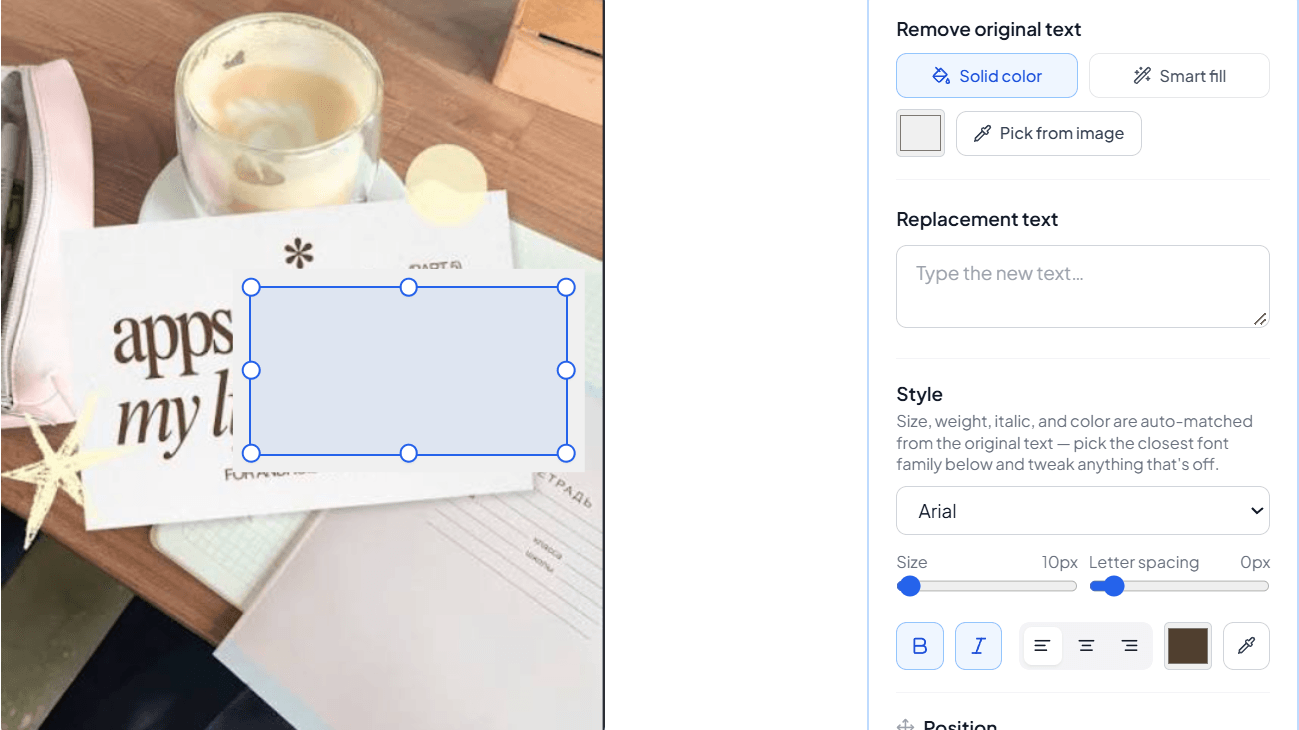
Select the text you want to change. You can replace existing text, correct the original text, or add text to your screenshot.

Customize the Text
Adjust the font style, size, and fonts colors according to your needs. You can also try to match the original font so the new text fits naturally with the image.
Preview and Download
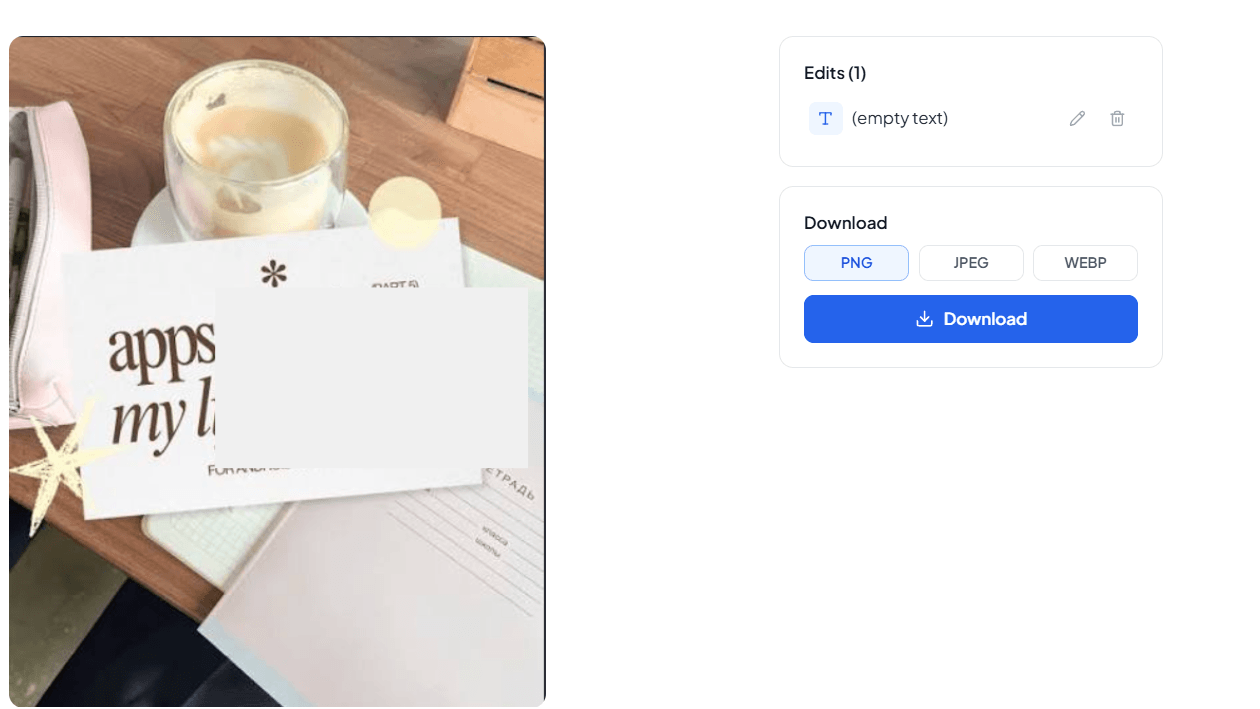
Check your changes in real time and make sure everything looks correct. Once you are satisfied, download the edited image in high quality to your device
Frequently asked questions
What is a Screenshot Text Editor?
A Screenshot Text Editor is an online tool that helps you edit text in screenshots and images. user can replace existing text, add new text, and customize your image easily without advanced editing skills.
Can I edit text in an image?
Yes, you can edit text in an image by uploading your screenshot and changing the existing content. If you need to convert or optimize your image after editing, you can use tools like JPG Converter, PNG Converter, or Image Compressor.
Can I improve image quality after editing?
Yes, after editing your screenshot, you can use an Image Upscaler or Image Enhancer tool to improve image quality and make your visuals clearer.
Can I compress my edited screenshot?
Yes, after editing your image, you can use an Image Compressor to reduce file size while maintaining good quality.
Do I need professional image editing software?
No, you do not need professional software. This online tool provides simple image editing features directly in your browser.
Does this tool work on mobile devices?
Yes, the Screenshot Text Editor works on mobile devices, tablets, and computers. You can edit images online without installing additional software.
Last updated:
Share this tool
Know someone who'd find it useful? Send it their way.